
AgilityNerd Tracker Help
Installation
- Install AN Tracker on mobile devices
Here are simple instructions to save AN Tracker to your mobile device's home screen for fast access.
Or you can watch my video on how to get started on iPhone/iPad.
Since that video was made you can now use any browser on the iPhone/iPad to do this, not just Safari.
- I'm stuck on an old version of the Tracker, how do I get the latest version?
If you're seeing an old version you'll need to clear your browser cache. Here's how:
Desktop Browser Refresh (Force Reload/Hard Refresh)
- Windows/Linux (Chrome, Firefox, Edge, Brave): Hold Ctrl and press F5, or hold Ctrl and Shift and press R
- Mac (Chrome, Firefox): Hold Cmd and Shift and press R
- Mac (Safari): Hold Cmd and Option and press E (to clear cache) then hold Cmd and press R
- Alternative: Hold Ctrl or Shift and click the browser's reload button
Mobile Browser Refresh (Phones/Tablets)
- Android (Chrome): Go to Settings > Privacy > Clear Browsing Data and clear the data.
- iOS (Safari): Go to Settings > Safari > Clear History and Website Data.
Adding/Editing Results
- Is there a quick way to enter a bunch of results at once?
On the results page the "Add Result" button opens a dialog that lets you enter your results. If you click "Save & Add Another" it will save the current result and leave your last settings in place so you can quickly enter another result for the same dog, class, level, etc. This can save a lot of time when entering multiple results at once.
- Can I copy a result? Or make other small changes and add it as a new result?
On the results page scroll the result table all the way to the left. Click the pencil icon next to the result you want to copy to open the edit dialog. Click "Save & Add Another" it will save the current result and leave those settings in place. Then make the changes you want and click "Save" (or "Save & Add Another" to do it again) to add it as a new result.
- How do I edit many results at once?
If you need to examine or edit many results all of the same type (for example to update Clean Runs as Faulted after importing from Bad Dog Agility) use the Filtering feature on the Results page to select the results you want to edit.
On the results page scroll the result table all the way to the left. Click the pencil icon next to the first result you want change to open the edit dialog. Make your change(s). Click "Save" to save the current result. Then click the "Next" button to go to the next result in the filtered list. Keep changing/saving or skipping to the next until you're done. To close the dialog click the "X" at the top right corner of the dialog.
- Do I have to enter all my dog's past results?
No, if you have already earned titles or Qs/points toward event eligibility you can tap the "gear" icon on each card on the Dashboard's title or event tabs to manually enter your dog's current status without entering all past results. Then you can start entering new results from today onward.
For titles you can use the AKC Points Progression Report to get your dogs' current titles and points and use the Result import feature to set all your starting values:
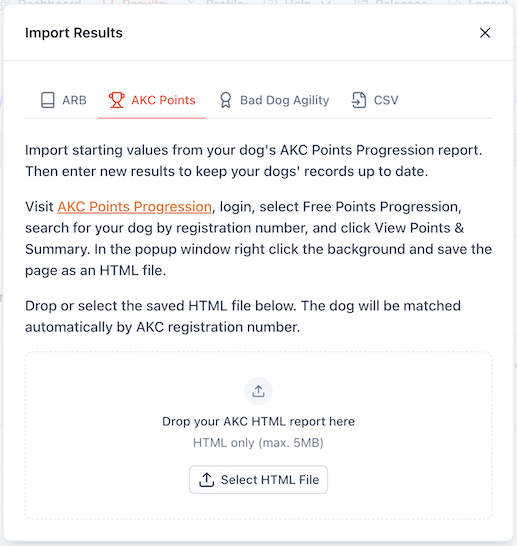
Here's a video showing how to use the import feature to set your starting values on desktop/laptop devices. The process is similar on mobile devices but the way you save the AKC Points Progression report is different.
Importing Results
Importing your trial results can save you time and avoid errors. You can import results from CSV files and using data exported from other systems.
- Importing from Agility Record Book (ARB)
Click the import button on the Results page and select the "ARB" tab. Then select your dog from the dropdown list. Select the ARB run export file you downloaded from ARB or drag and drop it onto the file input area. The Tracker will read the file and import all the results it finds for that dog.
See the Agility Record Book Help Page for the easy steps to export your results from ARB.
- Importing from Bad Dog Agility's Ribbon Wall
Click the import button on the Results page and select the "Bad Dog Agility" tab. If one of your dogs already has a ribbon wall setup you'll be able to select your dog from the dropdown list. If not the tab will show you instructions on how to set one up. You'll have to wait overnight for Bad Dog Agility to generate the ribbon wall data. Once you see your dog's ribbon wall just come back to the results page and select your dog's name from the dropdown to import your results.
The Bad Dog Agility ribbon wall only has minimal information for each qualifying result: date, division, class, level, and jump height ONLY. So you will need to edit some results after importing to add missing information.
Unfortunately, fault data is not included. So ISC results with faults imported from BDA will always show as "Clean". Use the filtering and editing feature on the results page to update results for faulted ISC runs to "Faulted" after importing if needed.
Also, no MACH, FAST, or T2B points are imported. so you'll need to edit those results after importing to add points as needed. OR you can use the "gear" icon on each dog's titling card on the Dashboard page to manually set your dog's current MACH/FAST/T2B points after importing. You can do the same on event cards to set your dog's current points toward event eligibility.
As you add more results the points will update and include the "starting value" points you set.
- Importing from Excel/Comma Separated Values (CSV) Files
Click the import button on the Results page and select the "CSV" tab. You'll see instructions on how to proceed.
Select "Download Sample" to get an example with every supported column and value. Open it in a spreadsheet program like Excel or Google Sheets, replace "Sample Dog" and the example results with your own data, and save it as a CSV file. Optional columns and values may be left blank.
When you import the CSV file the Tracker will read each row and attempt to add it as a new result. Rows with errors and duplicates will be skipped, and the import will continue. Errors (with line numbers) will be reported in the import results dialog. There is basic checking of values in the CSV file. Make certain the class, level, etc. exactly match the values in the Add Result dialog. You can repeat the import process as many times as needed to correct any errors and get all your results imported.
If you ever want to start over and re-import all your results you can delete all your results by deleting your dog(s) and re-adding them. Then you can import all your results again.
Exporting Results
- How do I get my dogs' results out of the Tracker?
Go the the Results page, use the filters to select the dog(s) and other criteria you want, then click the "Export Results" button. With no filters selected all your dogs' results will be exported. This will generate a CSV file you can open in a spreadsheet program like Excel or Google Sheets.
Results
- My dog(s) won't be trying for all the events listed. How do I remove them?
On the Dashboard page select your dog and scroll to the event of interest. Click the "gear" button at the top right of the event card. This will open a dialog where you can show or hide events. Your selection will be saved for future visits to the Dashboard page.
Once an event is over it will be moved to the Archived tab of the Dashboard page for each dog.
Eligibility/Troubleshooting
- The site says my dog is/isn't eligible for tryouts but I think that's wrong, what do I do?
On the results page use the filter to select only that dog's results. Then export the filtered results and email them and a description of the issue to me at steve@agilitynerd.com
- The site says my dog is eligible for tryouts but our entry was rejected, what do I do?
It is each competitor's responsibility to ensure their dog's eligibility for tryouts by checking the published requirements. The AgilityNerd Tracker is provided as a tool to help competitors track their dogs' progress towards eligibility but may not always reflect the most current information or may have bugs. If you believe there is an error please export your dog's results and email them with a description of the issue to me at steve@agilitynerd.com
- Sometimes I end up on the Login page but I just logged in!
The site uses a 3rd party authentication service that sometimes has delays in communicating your logged in status back to the Tracker app. I've put in place several measures to reduce the chances of this happening and will be notified when it happens so I can investigate. If you go to the menu you should see the normal links and clicking on them should take you to the right place. If you only see Login and Help the you actually are logged out and need to log in again.
Account Management
- How do I remove my account and all my data?
On the Profile page you can permanently delete your account and all associated data. All your data will be irretrievably deleted.
Donations
- How does the donation banner work?
If you haven't donated in the past year (or ever), you'll see a banner on the Dashboard and Results pages suggesting a $20/year donation. Tapping the link takes you to Ko-fi to make the donation. If you use the same email or name on your Ko-fi payment method as your Tracker account, it will match automatically. Otherwise, put your Tracker first and last name in Ko-fi's message field so the system can recognize your donation. If the banner doesn't disappear after donating, email steve@agilitynerd.com so I can manually connect your donation. You don't need to create a Ko-fi account to donate.
Once you donate ad banners will automatically disappear for one year. Additional features may be added in the future only for donors.
Your donation helps cover hosting costs (~$500/year) and supports continued development.
General Questions
- I've tried everything and I'm stuck how do I contact you?
Email me at steve@agilitynerd.com
- Is the AgilityNerd Tracker associated with the American Kennel Club (AKC)?
No, the AgilityNerd Tracker is an independent service created by AgilityNerd LLC to help other competitors track their dogs' eligibility for events and titles. It is not affiliated with or endorsed by the American Kennel Club (AKC).