
Agility Record Book Help
Agility Record Book (ARB) is a tool used by dog agility competitors to track their competition results, titles, and progress over time.
AgilityNerd Tracker can import your existing results from ARB using a CSV export file to quickly get you started tracking your dog's goals.
Exporting Results from ARB
To export your results from ARB, follow these steps. ARB remembers the settings you last used, so if you have exported before, your screens may look slightly different. If you only export for AN Tracker you can just click through to export again.
- On the dog runs view (the default) click on the dog you want to export results for.
- In the top menu bar click on "File" and then select "Import and Export..."
- In the Export dialog select For a spreadsheet and Export Runs.
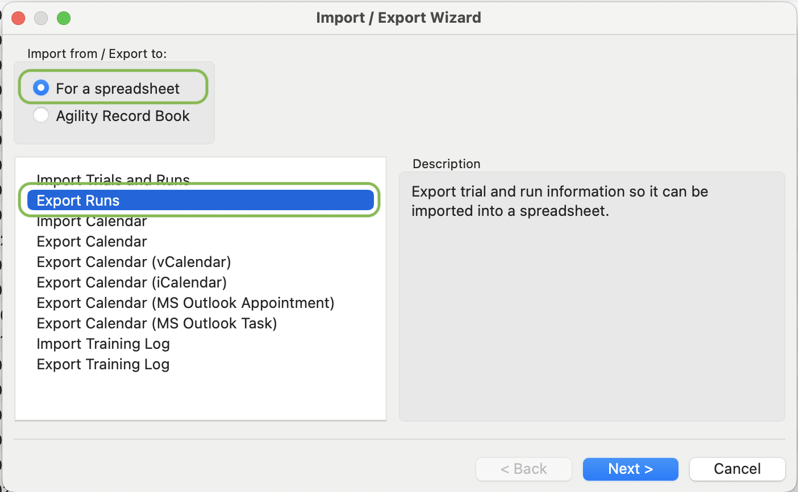 Click the Next button to continue.
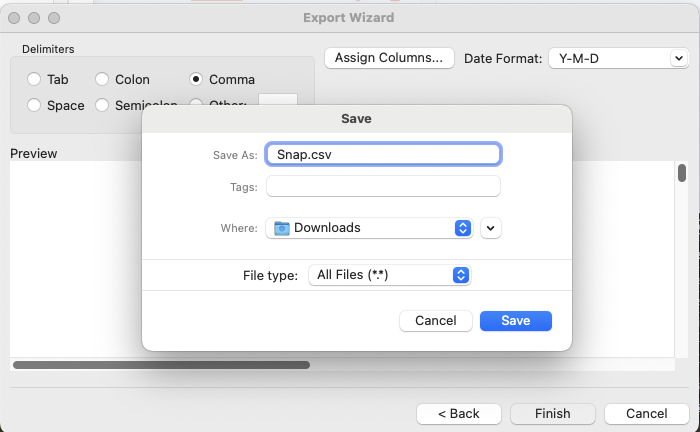
 - In the Export dialog select Delimiters "Comma" and confirm date the format is Y-M-D.
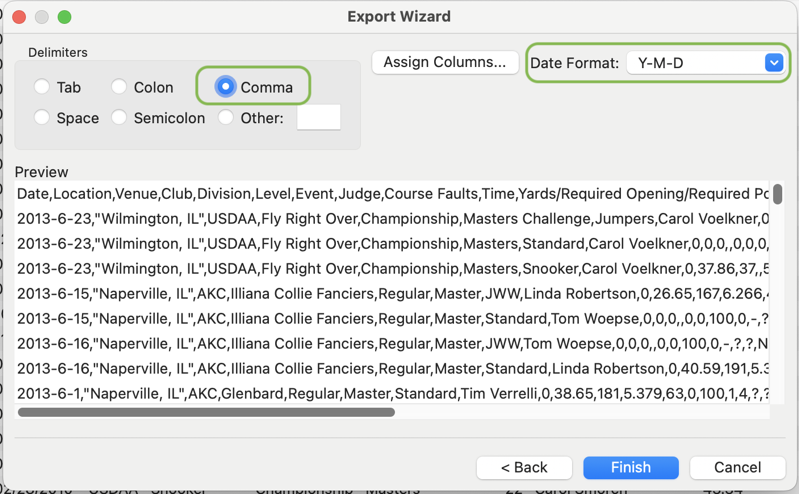 Click the Assign Columns... button to continue.
 - In the Assign Columns dialog you want to add some additional columns to the export.
For each of the four selections in the top box add the "Call Name", "Height", "Comments", and "Handler" columns by selecting them and clicking the Add -> button.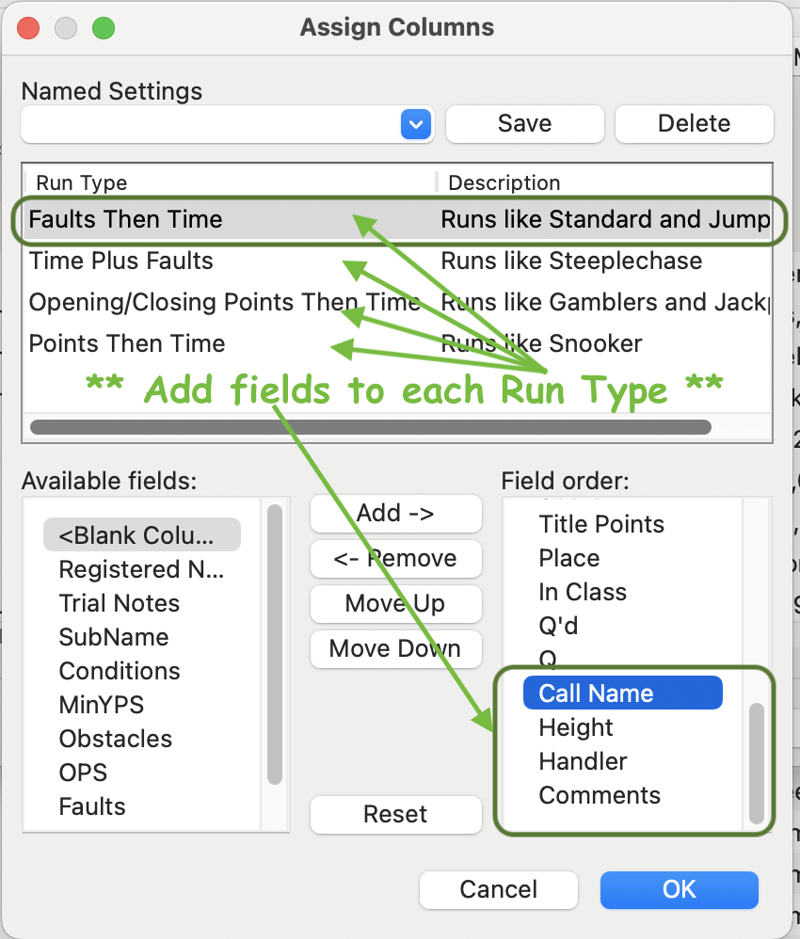
- Once you've assigned the columns in all four run types name the setting (e.g. Tracker) and click the Save button. Now you'll never have to assign columns again!
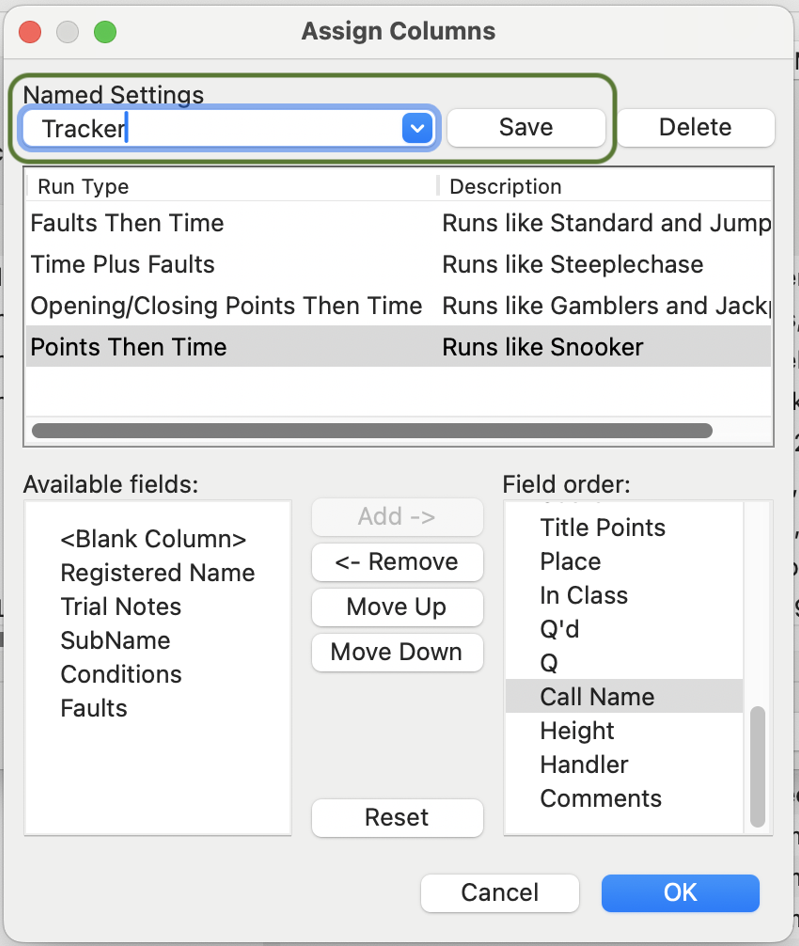 Click OK to continue.
 - Back on the Export dialog click the Finish button. A file save dialog will appear. Save the file to a location you will remember, such as your Desktop. Be sure to name the file with a .csv extension.
Now you can import the CSV file into AN Tracker by tapping the Import button on the Results page.
You can continue to add results to ARB and import them into AN Tracker as needed.